> ## Documentation Index
> Fetch the complete documentation index at: https://docs.guidewhale.com/llms.txt
> Use this file to discover all available pages before exploring further.
# Customer.io
> Send GuideWhale events and user property changes to Customer.io for shared insights into user behavior and content engagement.
This integration allows you to send one-way events from GuideWhale content interactions (such as guide views, completions, and checklist usage) to Customer.io for advanced tracking and reporting. Alongside events, GuideWhale can also send any user property changes to be used for email automation.
All user events pushed to 3rd party platforms are prefixed with `gw_` to easily differentiate GuideWhale from other event sources.
## Use Cases
* Leverage user events and user properties to target and personalize email campaigns.
* Nudge users to try out new features if they have not used them yet.
* Track how users are interacting with your in-app guides, checklists, and banners and compare that to how they are interacting with your website.
## Requirements
* Installed GuideWhale Javascript SDK
* Installed Customer.io Javascript SDK
* Enabled integration in GuideWhale dashboard settings
## How It Works
* GuideWhale SDK will fetch the integration settings from our dashboard when a user is identified.
* When a new GuideWhale event is tracked, we first check if event pushing is enabled and if the event belongs to an enabled group of events.
* After that we try pushing the event to Customer.io using your installed Javascript SDK if it is available.
* If we detect that user has an installed ad blocker, events will be pushed through the Customer.io API instead to make sure events are always delivered.
## Configuration
1. Navigate to Settings > Integrations .
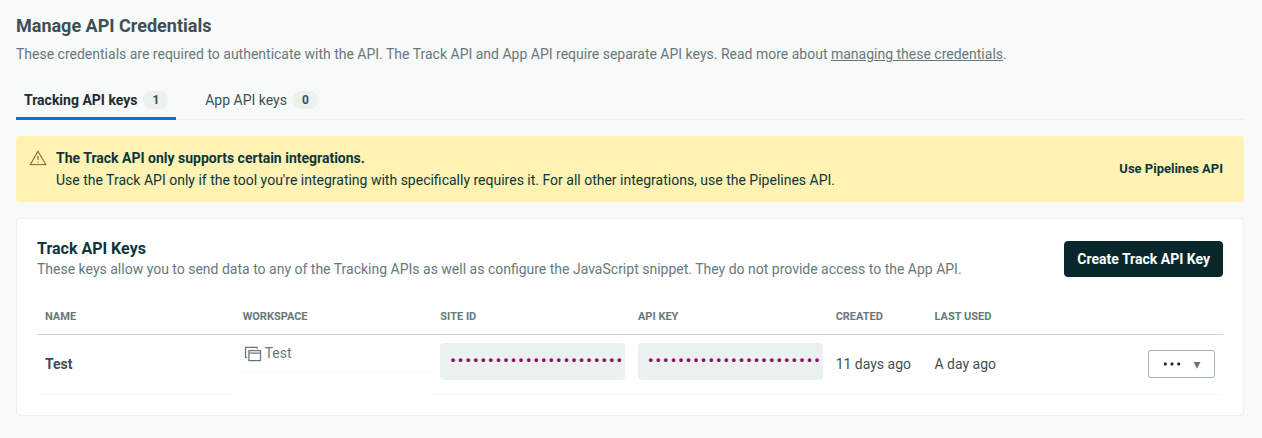
2. Before enabling any outbound events or user property syncing, make sure to first configure your Customer.io `Site ID` and `API Key`.
3. Your `Site ID` and `API Key` can be found in Customer.io under Account Settings > API Credentials > Tracking API Keys.
Make sure to use the Tracking API key and not the App API key.
 ## Event Configuration
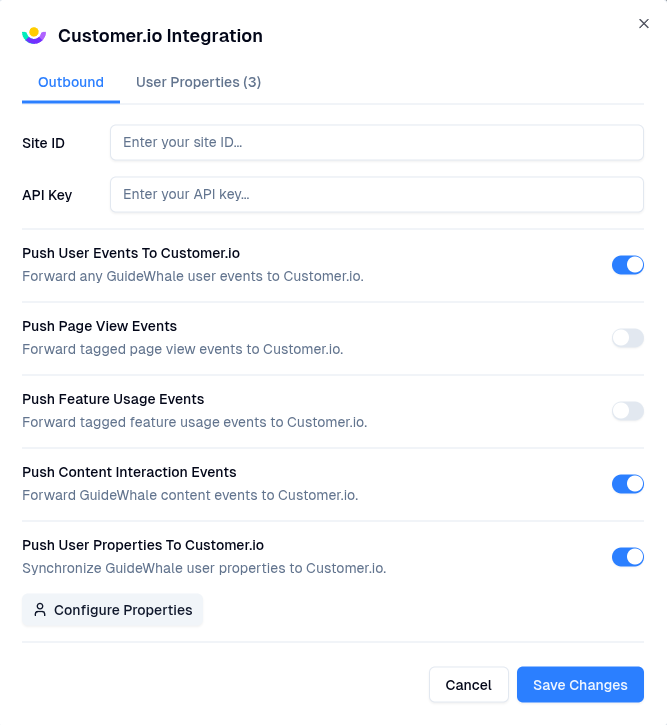
1. Here you can toggle which event types you want GuideWhale to send to Customer.io.
2. Once enabled, users will start pushing GuideWhale events to Customer.io.
## Event Configuration
1. Here you can toggle which event types you want GuideWhale to send to Customer.io.
2. Once enabled, users will start pushing GuideWhale events to Customer.io.
 ## User Property Mapping
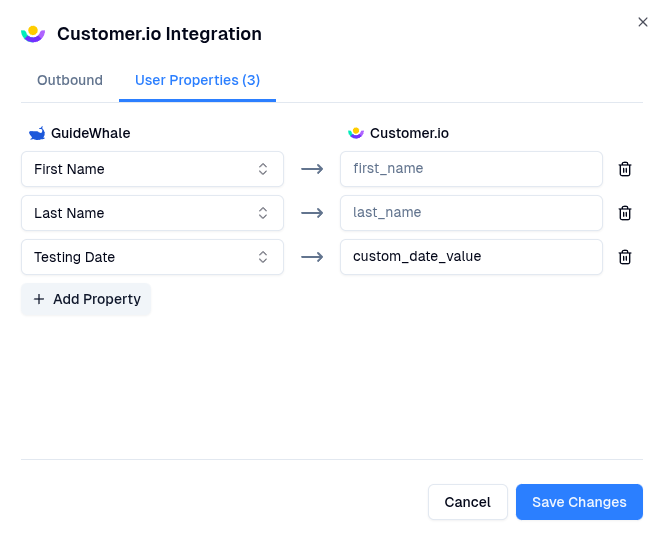
1. In the `Outbound` tab you can enable user property pushing.
2. In the `User Properties` tab you can map GuideWhale user properties to Customer.io user attributes.
3. Once enabled, users will start pushing mapped GuideWhale user property changes to Customer.io.
## User Property Mapping
1. In the `Outbound` tab you can enable user property pushing.
2. In the `User Properties` tab you can map GuideWhale user properties to Customer.io user attributes.
3. Once enabled, users will start pushing mapped GuideWhale user property changes to Customer.io.